Color coding can make your calendar easier to scan. It can also turn into a long setup project that does not help much.
Use a few colors so you can understand your week at a glance.

What Color Coding Does
A color system lets you see whether a day is mostly class, work, appointments, or time with friends. You can spot a busy week without reading every event.
If you need to remember what twelve colors mean, try fewer colors. Choose categories you can spot in a few seconds.
Choose a Few Useful Categories
Start with three to five categories. You could use one color for school, one for work, one for personal plans, one for friends, and one for exercise or self-care.
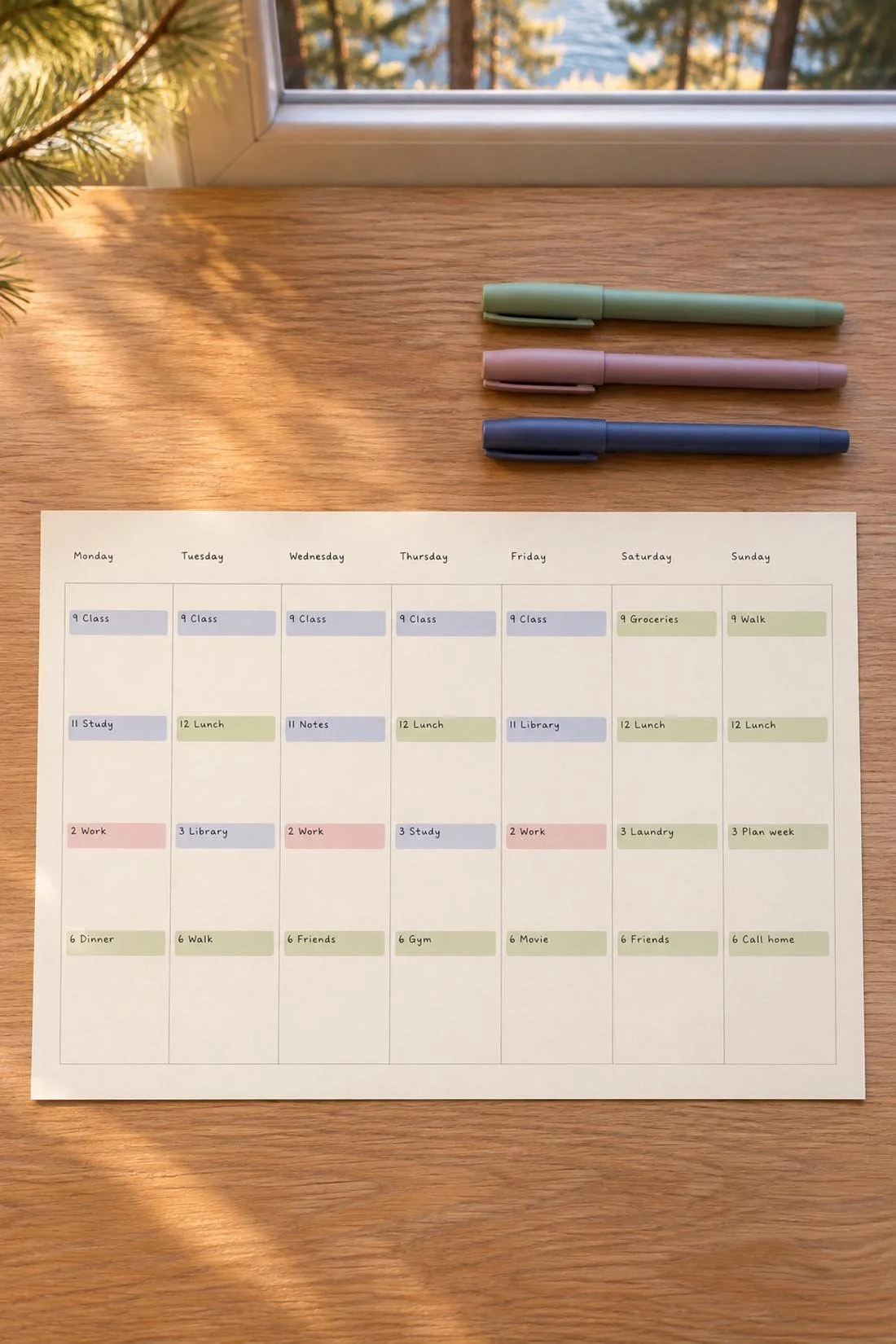
Give anything else the closest category. You do not need a new color for every kind of event.
Set It Up in a Few Minutes
In Google Calendar, create a separate calendar for each category, such as School, Work, Personal, and Social. Give each calendar a color. New events will use that color when you add them to the right calendar.
For more ideas, try our guide to a weekly schedule that fits your life.
If you use Google Calendar, see Google Calendar’s guide to creating events for adding the events.
Apple Calendar uses a similar setup. Once your calendars and colors are ready, you do not have to choose a color for every event.
Try three or four categories first. You can add or remove one after you use the system for a week.
Build the Calendar Habit First
Color coding cannot help if you forget to add events. Start by putting classes, due dates, work shifts, and plans on your calendar.
For more ideas, try our guide to using a planner through the semester.
For a way to review your weekly commitments, see Cornell’s weekly planning guide.
Add colors after you are using the calendar often. The colors should make a good habit easier.
It Should Feel Easier
Your calendar should help you feel clear. If the colors feel like another chore, use fewer categories or choose colors that are easier to tell apart.
The system works for you. You can change it at any time.